

Phiên bản mới nhất
Phiên bản
5.8
5.8
Cập nhật
April 05, 2025
April 05, 2025
Nhà phát triển
Mosaic and Blur Video
Mosaic and Blur Video
Thể Loại
Đa phương tiện
Đa phương tiện
Nền tảng
iOS
iOS
Kích thước tập tin
34.3 MB
34.3 MB
Tải ngay
0
0
Giấy phép
Free
Free
Báo cáo
Báo cáo sự cố
Báo cáo sự cố
Thông tin thêm về MovStash - Blur Video Editor
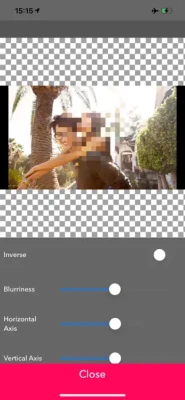
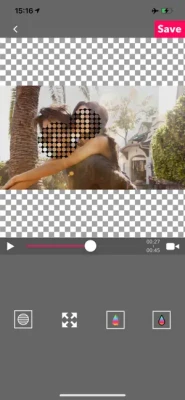
This app is for making mosaic/blur video.
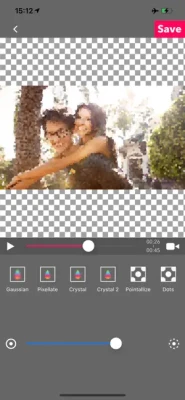
You can choose 4 types of blur.
■Simple mode.
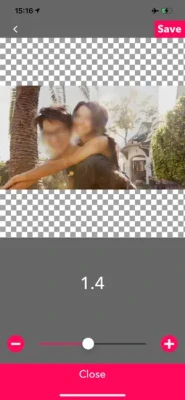
Simple mode is for Blur to the specified area and all duration of the video.
-- How to edit mosaic/blur --
Position :Drag mosaic/blur area directory or screen using with one finger.
Size :Pinch mosaic/blur area directory or screen using with two fingers.
Blurriness:Parallel swipe mosaic/blur area or screen using with two fingers.
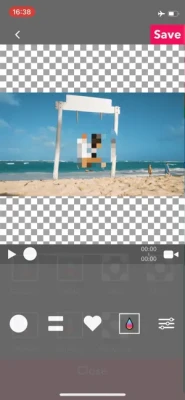
■Timeline mode.
Timeline mode is you can blur to the specified area in a specified time range of the video.
-- How to use basics. --
1. Select the video.
2. Press [+] button to add a new blur area.
3. Drag the red area to the place you want to blur.
4. Press [OK].
5. [≡] button is to show the list of blur areas. you can edit again after you've done once.
6. Adjust blur types and level, and then press [save] to render the video with blur.
-- How to set the time range
1. Press [+] button to add a new blur area.
2. Slide the slider to the time that is started blur.
3. Drag the red area to the place you want to blur.
4. Slide the slider to the time that is ended blur.
5. Drag the red area to the place you want to blur.
6. You can see three thumbnails under the slider. Tap the last one and press the trash bin button to delete.
7. Then the blur area is only showed up in the time range.
8. Press [OK] to do it.
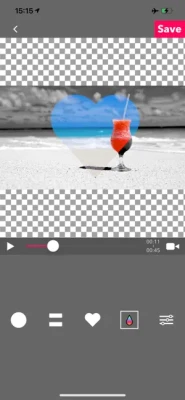
-- How to change the shape of blur area
1. Tap the red area which is located under the slider.
2. Select the shape you want to.
■Face tracking mode
App blur faces that are recognized.
Face tracking mode is not a perfect solution to blur faces so be careful.
-- How to use --
・Faces are recognized automatically after you select a video.
・You can adjust blurs size/level/type and inverse area or nor.
・Press [save] to export it.
■Simple mode.
Simple mode is for Blur to the specified area and all duration of the video.
-- How to edit mosaic/blur --
Position :Drag mosaic/blur area directory or screen using with one finger.
Size :Pinch mosaic/blur area directory or screen using with two fingers.
Blurriness:Parallel swipe mosaic/blur area or screen using with two fingers.
■Timeline mode.
Timeline mode is you can blur to the specified area in a specified time range of the video.
-- How to use basics. --
1. Select the video.
2. Press [+] button to add a new blur area.
3. Drag the red area to the place you want to blur.
4. Press [OK].
5. [≡] button is to show the list of blur areas. you can edit again after you've done once.
6. Adjust blur types and level, and then press [save] to render the video with blur.
-- How to set the time range
1. Press [+] button to add a new blur area.
2. Slide the slider to the time that is started blur.
3. Drag the red area to the place you want to blur.
4. Slide the slider to the time that is ended blur.
5. Drag the red area to the place you want to blur.
6. You can see three thumbnails under the slider. Tap the last one and press the trash bin button to delete.
7. Then the blur area is only showed up in the time range.
8. Press [OK] to do it.
-- How to change the shape of blur area
1. Tap the red area which is located under the slider.
2. Select the shape you want to.
■Face tracking mode
App blur faces that are recognized.
Face tracking mode is not a perfect solution to blur faces so be careful.
-- How to use --
・Faces are recognized automatically after you select a video.
・You can adjust blurs size/level/type and inverse area or nor.
・Press [save] to export it.
Đánh giá ứng dụng
Thêm nhận xét và đánh giá
Đánh giá của người dùng
Dựa trên 0 đánh giá
Chưa có đánh giá nào được thêm vào.
Các bình luận sẽ không được chấp thuận để đăng nếu chúng là SPAM, lạm dụng, lạc đề, sử dụng ngôn từ tục tĩu, chứa đựng sự tấn công cá nhân hoặc kích động sự thù ghét dưới bất kỳ hình thức nào.











Xem thêm »

Phổ biến nhất

MiniTool Power Data Recovery Free 8.5.0MiniTool Solution Ltd.

Zalo PCZalo Group

Dingtone: Calling & TextingPhone call & text message app

Payback 2 - The Battle SandboxApex Designs Games LLP

MBCambodia My BankMB Bank

Top Football Manager 2024Gamegou Limited

Duolingo: Học ngoại ngữDuolingo

King of boxingKEENGAME

War Thunder MobileTanks, ships and aircraft

Đấu trường OnmyojiDZOGAME Viet Nam
Xem thêm »
Công cụ hữu ích

TikTokTikTok Pte. Ltd.

FacebookMeta Platforms, Inc.

HWiNFO7.68REALiX
Zalo PCZalo Group
War Thunder MobileTanks, ships and aircraft

Grim Soul: Dark Survival RPGBrickworks Games Ltd

Craft of Survival - Gladiators101XP LIMITED

Last Shelter: SurvivalLong Tech Network Limited

Dawn of Zombies: Survival GameRoyal Ark

Merge Survival : WastelandStickyHands Inc.
 Games - Trò chơi
 Mạng Xã Hội
 Email - Chat - Gọi Điện
 Ứng Dụng Giải Trí
 Bảo Mật
 Phần mềm hệ thống
 Đa phương tiện
 Internet
 Tài Chính- mua sắm
 Thiết Kế
 Giáo Dục
 Công Nghệ Thông Tin
 Du lịch và địa điểm
 Android
 iOS
iOS Windows
 Mac
Mac Linux
Linux Web
Web